
How to Check an APK File Before Installing
Checking a downloaded package takes about a minute once you know where to look, and it is genuinely satisfying — you go from “I hope this is right” to “I know this is right”. This is the routine we reference across the site, written for an ordinary Android phone and no special tooling experience.
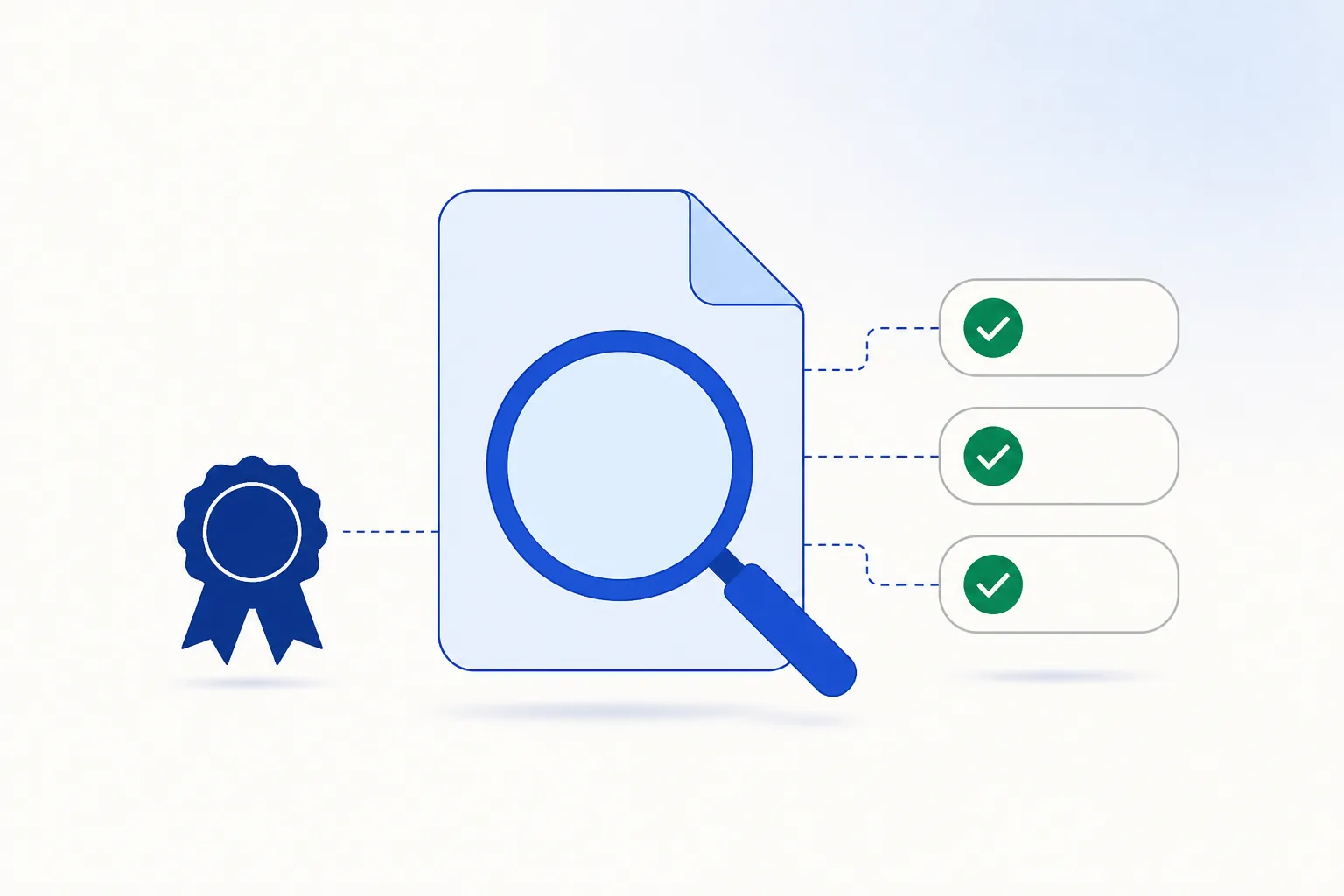
The five-step routine
- Check the source before you touch the file
You want the operator’s own mobile page: a clear identity, consistent version information, no redirect chain and no countdown banners. Get this one right and the rest of the routine is confirmation rather than investigation.
- Compare the checksum, if there is one
When a publisher states a SHA-256 checksum, compute yours and compare them character for character. A match means your bytes are exactly the bytes described. Plenty of apps outside the Play Store do not publish one — if so, skip this step and lean on the others.
- Read the manifest without installing
An APK analyser shows the package name, versionCode, minSdkVersion and the full permission list. This is the step that catches a mislabelled download in seconds.
- Check the signing certificate
Compare the certificate’s SHA-256 fingerprint against a reference you trust — a previous known-good install, or a fingerprint the developer publishes. A different fingerprint means a different publisher.
- Let Play Protect do its pass
Keep Play Protect enabled and it scans the package as it installs, at no cost to you. If you have a computer handy, a multi-engine scanning service adds a second opinion.
Steps 1–2 in detail: source and checksum
Source checking is covered thoroughly in fake app warning signs. The short version: you are looking for a page that plainly belongs to the operator, states one consistent version, and never asks you to switch a security feature off.
Computing a SHA-256 checksum needs no special software:
- On Windows:
certutil -hashfile file.apk SHA256in a command prompt. - On macOS / Linux:
shasum -a 256 file.apkorsha256sum file.apk. - On Android itself: plenty of file managers and hash utilities do it. Use one from Google Play rather than another downloaded file — checking a package with an unchecked tool rather defeats the point.
Step 3 in detail: reading the manifest
What to look at, and what each field tells you:
| Field | What to check | What it tells you |
|---|---|---|
| Package name | Note it exactly and compare it with any previous install or reference. | A name imitating an unrelated publisher, or one that differs from the version already on your phone, means this is not the same app |
| versionCode / versionName | Should be plausible, and higher than the version you already have. | A 'new' file with a lower versionCode is an older build being re-listed — take the current one from the operator instead |
| minSdkVersion | Compare it with your Android version (Settings → About phone). | Nothing to worry about — it simply tells you in advance whether the package will run on your phone |
| Permissions | The full declared list, not just the ones a page mentions. | Requests such as SMS, call log or accessibility do not fit a casino or wallet app; anything you cannot explain is worth a pause |
What counts as normal for each app category is laid out in Android app permissions explained.
Step 4 in detail: the certificate
APK analyser tools show the signing certificate’s SHA-256 fingerprint — a string like A1:B2:C3:…. How to read it:
- Updating an app you already have? Android enforces the match for you. Checking manually before any uninstall-and-reinstall cycle just means you keep that protection instead of throwing it away.
- First install? You need something to compare against: a fingerprint the developer publishes, or a copy of the app from a phone you trust. If neither is to hand, note the fingerprint anyway — every future file can then be compared against today’s, and your update path is protected from here on.

Why the certificate carries so much weight is explained in APK security fundamentals: it is the one part of a package nobody can copy along with the rest.
Step 5 in detail: scanning
- Play Protect scans automatically at install time on any phone with Google services — there is no reason to turn it off, and no legitimate download page asks you to. Its messages are decoded in how Play Protect works.
- Multi-engine scanners — web services that run dozens of engines over an uploaded file — add breadth. Several engines agreeing is meaningful; zero flags on a very new file is mild reassurance rather than proof, because detection databases take time to catch up.
Reading your results
| What you found | Sensible conclusion |
|---|---|
| Checksum matches the published value, certificate matches your reference, permissions look ordinary | Fully verified — the file is the publisher's own and your update path is protected from here |
| No published checksum or reference fingerprint, permissions look ordinary, scan clean, downloaded from the operator's page | The normal situation for apps outside the Play Store. The source is doing the work, which is why it is worth choosing carefully |
| Checksum or certificate does not match | This is not the build you were after — delete it and download the current one from the operator |
| Permissions that do not fit the app (SMS, accessibility, device admin) | Worth a pause: nothing in this category needs them. Get the file from the operator's page instead |
| Play Protect blocks the file, or several scanners flag it | Take the hint and re-download from the official page rather than working around the block |
One practical note as of 26 August 2026: published checksum lists are uncommon for any app distributed outside an app store, so a first install usually lands in the second row above. That is ordinary for the category — and it is exactly why the download link on this site points at the operator’s own mobile page rather than a mirror. The Crorebet-specific detail is in the Crorebet APK guide.
Fastest version of this whole page: start the download at the source.Open Crorebet on mobile
Frequently asked questions
Which APK analyser should I use?
Any well-reviewed analyser from Google Play that shows manifest data and certificate fingerprints will do the job, and Android Studio’s built-in APK Analyzer is the reference tool if you have a computer. We deliberately avoid naming one favourite — the choice makes no difference to the result.
Can I do all of this on the phone alone?
Mostly, yes. A store-installed analyser and a hash tool cover steps 2 to 4, and Play Protect runs by itself. A computer makes checksum computation and multi-engine scanning more convenient, but nothing here requires one.
The site published an MD5 hash. Is that fine?
MD5 is no longer considered strong for integrity checking, but a matching MD5 still rules out a corrupted download. Treat it as a sign the page has not been updated in a while, and prefer SHA-256 where you have the choice.
Everything passed. What now?
Install it and enjoy the app. You have confirmed what the file-level checks can confirm — integrity, publisher continuity and sensible permissions. The rest is ordinary account practice, covered in account security, plus the wider Indian context in online gaming rules in India.
Related guides
Sources & references
- Android Studio — analyze your build with APK Analyzer — accessed August 2026
- Android Developers — app signing — accessed August 2026
- Microsoft Learn — certutil reference (hash computation) — accessed August 2026