
How Google Play Protect Works
Play Protect is the security scanner already running on virtually every Android phone in India — nothing to install, nothing to pay for. Knowing what it checks, what its messages mean, and where its job ends turns it from background noise into a genuinely useful signal, including for apps you install yourself.
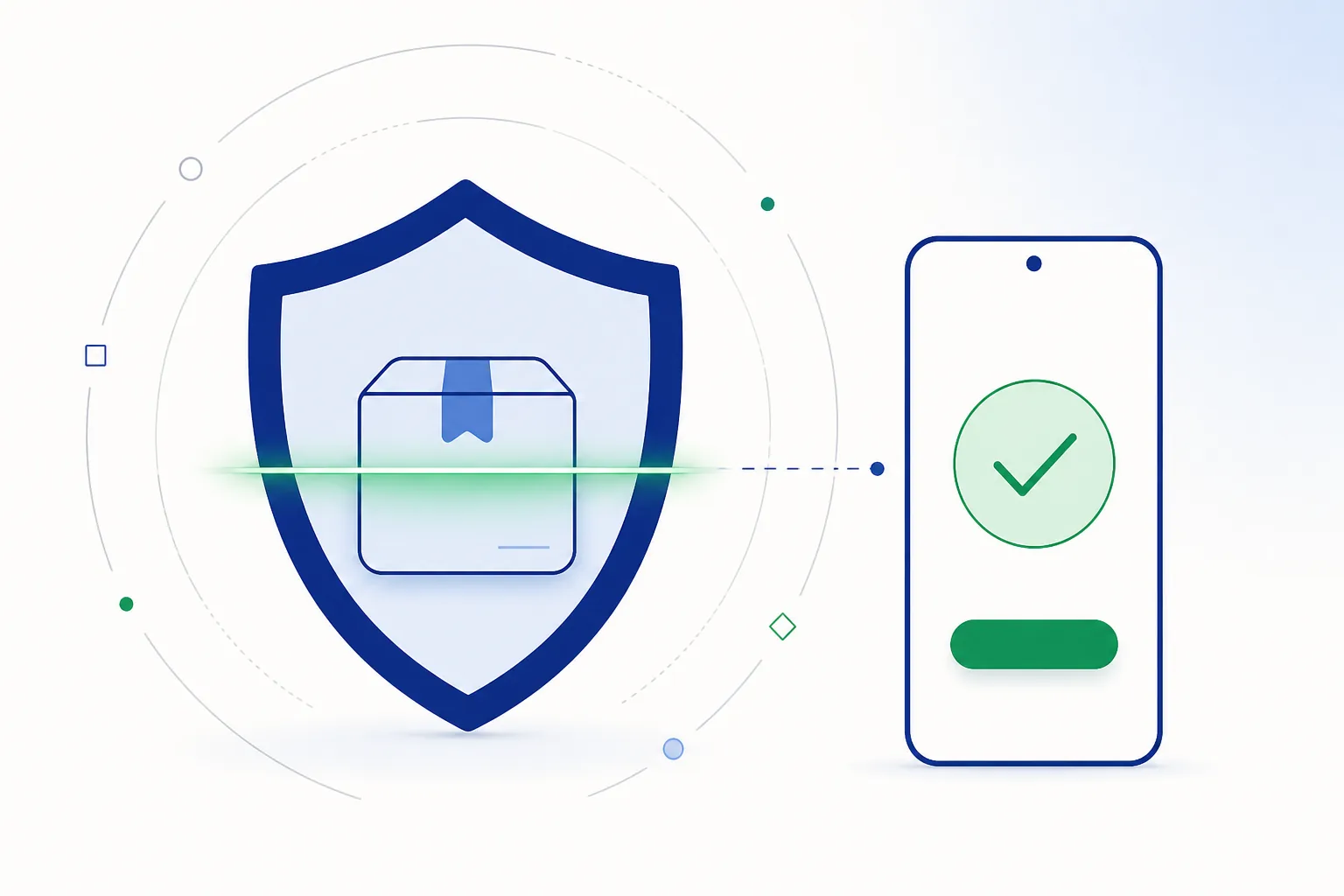
What Play Protect is
Play Protect combines on-device scanning with Google’s cloud-side view of the global app ecosystem. Because it ships with Play services rather than as a separate app, it covers the overwhelming majority of phones sold in India — including when they install software from outside the Play Store. That last part is the useful bit: installing an app from a download does not bypass Play Protect. The scanner runs either way, which is one reason the whole process is far more ordinary than it sounds.
What it scans and when
| Moment | What happens | Why it matters to you |
|---|---|---|
| Before a Play Store download | The listing's build has already passed Google's pre-publication analysis. | Doesn't apply to apps you install yourself — which is what makes the next rows the relevant ones |
| As you install a downloaded package | The package is checked against known-harmful signatures and behavioural models. For unfamiliar apps, a real-time code-level scan can run before the first install. | Automatic cover for every package you install yourself, at no cost and with no setup |
| Continuously after install | Periodic re-scans as Google's threat data updates, so something identified later can still be flagged. | Catches anything that was unknown at install time |
| On unusual permission behaviour | Play Protect can reset permissions for hibernated apps and surface apps behaving oddly. | Works alongside your own permission review |
Reading its messages correctly
Not every message on your screen carries the same weight:
- “Blocked by Play Protect” — the package matched known-harmful patterns. This is rare for a file taken from an operator’s own page and much more common with mirror copies: delete that file and download the current build from the official page.
- “This app may be harmful” (with an install-anyway option) — elevated suspicion rather than a match. Same practical answer: get the file from the source instead of working around the message.
- “Unsafe app blocked/removed” after installation — Play Protect identified something after the fact. Let it remove the app, then change the password on anything you signed into (account security steps).
- The generic browser warning (“This type of file can harm your device”) is not Play Protect and says nothing about your file — Chrome shows it for every APK download ever made. The same goes for Android’s “install unknown apps” prompt: it appears for every app installed outside the Play Store, and allowing it once is all it asks.
What Play Protect does not cover
Its boundaries are worth knowing, because they are quite narrow:
- Which publisher made a file. A quiet scan means nothing matched Google’s threat data; it does not identify who built the package. That is what the source and the certificate check in how to check an APK are for.
- Files nobody has seen yet. Detection data needs time to catch up with something brand new, so a clean result on a days-old mirror upload is mild reassurance rather than proof.
- How a service behaves. An app that does exactly what it says is outside the scanner’s remit — service quality is a separate question from software safety.
- Anything about distribution rules. Play Protect has no view on why a category is distributed outside the Play Store. Google Play simply does not carry real-money casino apps in India, which is why those apps install from a downloaded package; the wider picture is in online gaming rules in India.
Checking your settings
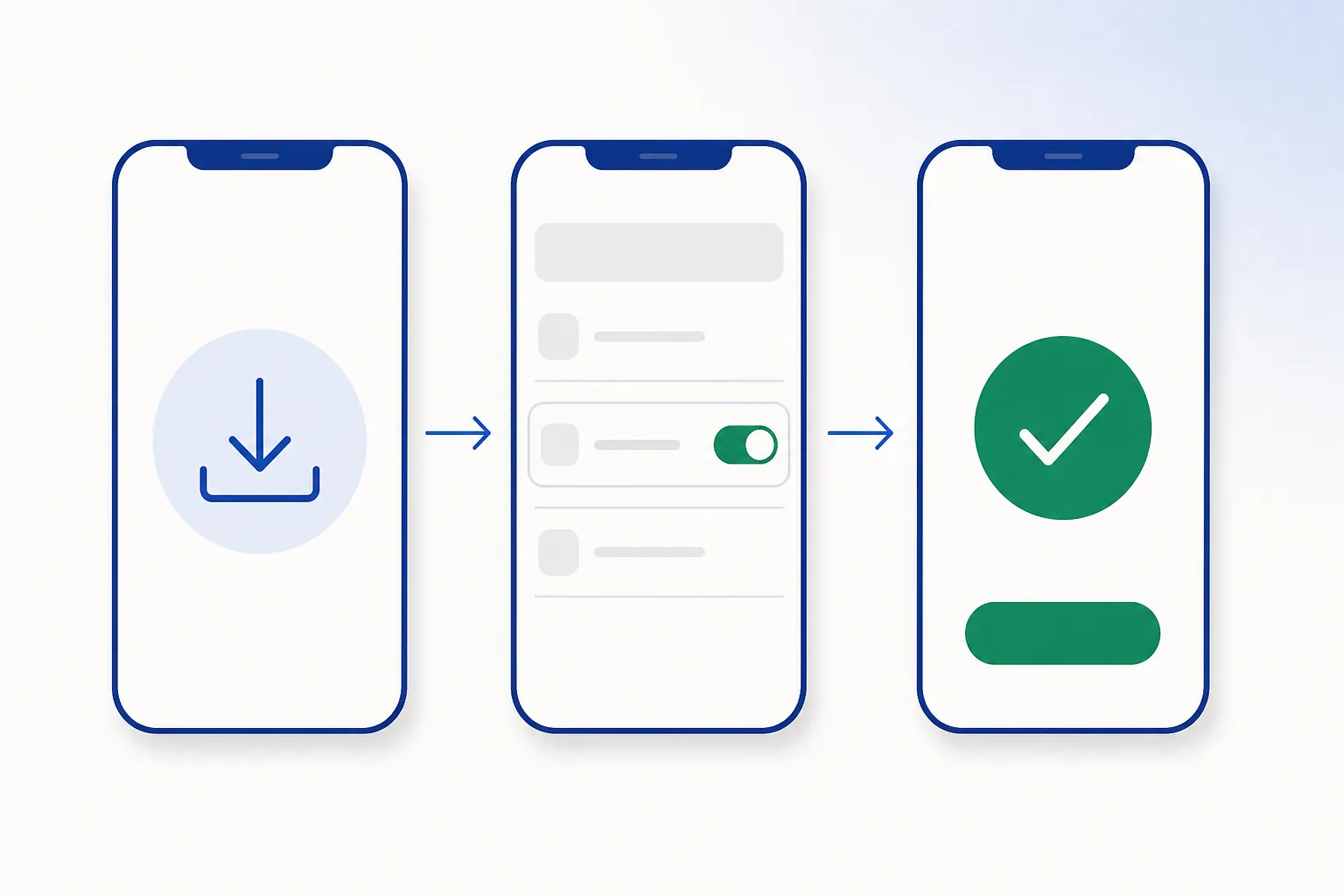
- Open the Play Store app.
- Tap your profile icon → Play Protect.
- Confirm scanning is on. The screen lists recently scanned apps and anything it found.
- Under Play Protect settings (the gear icon), keep both Scan apps with Play Protect and Improve harmful app detection enabled. The second one sends unfamiliar packages for cloud analysis, which is exactly the case that benefits when you install an app yourself.
Settings checked? Then the install is a one-minute job.Get Crorebet for Android
Frequently asked questions
Do I need to turn Play Protect off to install the Crorebet app?
No. The install runs normally with Play Protect enabled. The only extra step is Android’s one-time prompt allowing your browser to install from this source — a standard part of installing any app from outside the Play Store.
Does Play Protect replace an antivirus app?
For most people, yes — it is Google’s own scanner with ecosystem-wide visibility, and third-party mobile antivirus adds little on a non-rooted phone. What no scanner replaces is simply downloading from the operator in the first place.
Play Protect said nothing about my downloaded app. What does that mean?
That it scanned the package and found nothing matching its threat data — the normal, expected outcome for a genuine app. It is one piece of good news among several; the source of the download is the other.
Can Play Protect remove an app after I installed it?
For genuinely harmful apps, yes — it can disable or remove them and tell you why. That retroactive cover is the main reason to leave it enabled all the time.
Does it work without internet?
On-device checks work offline, while the cloud lookups — the most current data — need a connection. Installing with Wi-Fi or mobile data on simply gives the scanner more to work with.
Related guides
Sources & references
- Google Play Help — How Google Play Protect works — accessed August 2026
- Android Developers — Play Protect for developers — accessed August 2026