
Android App Permissions Explained
Permissions are the most straightforward thing about any app: whatever a page says, the manifest has to declare what the software can actually do. Reading a permission request in context — normal for this kind of app, odd for that one — takes about ten seconds and is easily the most useful Android skill to pick up.
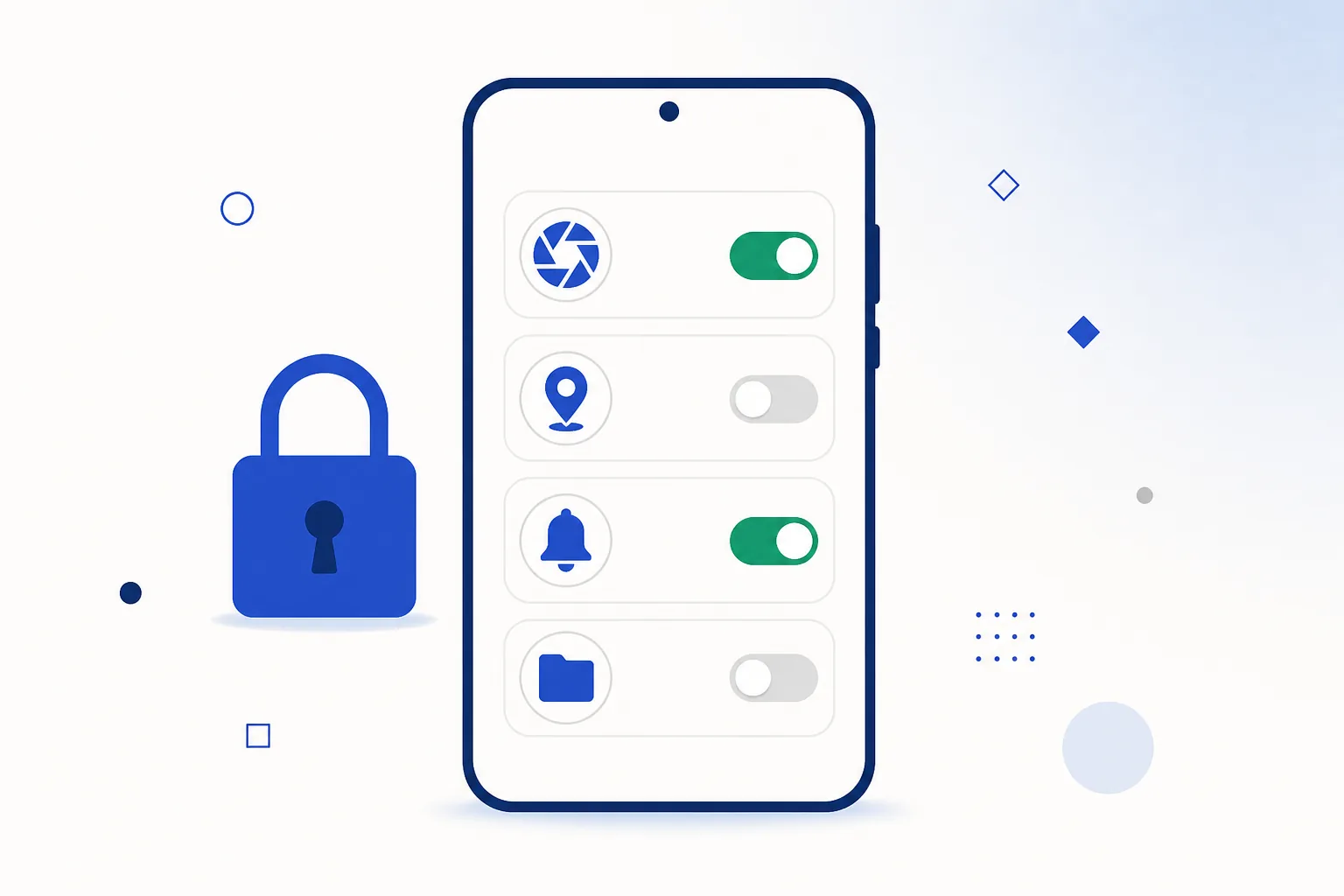
How the permission model works
Three tiers, and they behave quite differently:
- Normal permissions (internet access, vibration) are granted automatically at install. They expose very little and rarely need your attention.
- Sensitive permissions (camera, microphone, location, contacts, SMS, storage) trigger a prompt the first time the app actually uses them. You can say no, and the app has to cope without.
- Special access (accessibility services, device admin, display over other apps, install unknown apps) sits apart in Settings rather than behind a prompt, because each one gives an app system-level reach. Worth reading rather than granting on autopilot — and most apps never ask.
Recent Android versions add some genuinely useful refinements: one-time grants (“Only this time”), approximate instead of precise location, and automatic permission reset for apps you have not opened in months.
Permission groups decoded
| Permission | What it really allows | How often it's needed |
|---|---|---|
| Internet (normal tier) | Send and receive data with a server. Granted silently at install. | Universal — every connected app has it |
| Notifications (Android 13+) | Post notifications, including promotional ones. | Optional — handy for match alerts, easy to decline |
| Camera | Capture photos or video while the app is open. | Contextual — expected for an ID or document check, not at first launch |
| Location | Device position, precise or approximate. | Contextual — often requested for regional features; approximate is usually enough |
| Storage / photos & media | Read (and on older Android versions, write) shared files and media. | Contextual — modern scoped storage means most apps need only a file picker |
| Contacts / call log | Read your address book or call history. | Rarely — very few app categories have a real use for it |
| SMS (read/receive) | Read incoming and stored text messages. | Almost never — OTP auto-fill works without it on modern Android |
| Phone | Read phone state; in older forms, place calls. | Occasionally — legitimate for calling features, otherwise skippable |
Normal vs unusual, by app type
The same permission means different things depending on what the app does. Some reference points:
| App type | Expected requests | Wouldn't expect |
|---|---|---|
| Messaging | Contacts, camera, microphone, notifications | Device admin, accessibility |
| Navigation | Precise location, notifications | Contacts, SMS |
| Casino-style / wallet apps | Internet, notifications; camera only at an ID-verification step | SMS, contacts, call log, accessibility, device admin |
| Photo editor | Photos/media access, camera | Location, SMS, contacts |
| Torch / utility | Almost nothing | Practically any sensitive permission |
The Casino-style row is the reassuring one: the category needs very little, so a genuine app in it has a short list — which also makes an odd request easy to spot. Worked examples are in the Crorebet app guide and the APK troubleshooting knowledge base.
Special access, explained
- Accessibility services let an app read what is on screen and act on your behalf. They exist for assistive technology, and nothing in the app categories covered here has any use for them — so decline if you are ever asked.
- Device admin allows device-management policies, including preventing an app’s own removal. It belongs to work profiles and device-management tools; if an ordinary app holds it, the removal steps are in the removal walkthrough.
- Display over other apps lets an app draw on top of others — perfectly normal for chat bubbles and blue-light filters. It is also the usual explanation for a greyed-out Install button, because Android hides the button when something is drawing over it.
- Install unknown apps is the one-time switch that lets your browser or file manager install a package. You grant it to whichever app is doing the install, and you can switch it back off afterwards.
Reviewing and changing what you granted
- Open the permission manager
Settings → Security & privacy → Permission manager (the exact path shifts a little by manufacturer). It lists every permission with the apps that hold it.
- Review by permission, not by app
Looking at “which apps can read SMS” surfaces anything unexpected far faster than going through apps one at a time.
- Check the privacy dashboard
Android’s dashboard shows which apps used the camera, microphone or location in the last 24 hours — actual usage, not just capability. It is a satisfying screen to scroll through.
- Change your mind freely
Revoking costs nothing: an app that genuinely needs a permission will ask again in context, with the reason on screen. If you cannot explain why something has a permission, take it back and see whether you notice.
- Look at special access separately
Settings → Apps → Special app access covers accessibility, device admin, overlays and install-unknown-apps, which the permission manager does not list.
- Leave Play Protect switched on
It keeps an eye on installed apps in the background, so your own review is not the only line of defence. What it does and does not cover is in how Play Protect works.

Short permission list, quick setup — see the app on your own phone.Get Crorebet for mobile
Frequently asked questions
An app stops working when I deny a permission. Is that reasonable?
It depends on the link between the permission and the feature. A camera app cannot work without camera access, and that is fair enough. A Casino-style app does not need SMS access to open — so if a copy insists on something unrelated to its features, decline it and download the app again from the operator’s own page.
Do denied permissions actually stop an app doing something?
Yes — Android enforces them at the system level, so a denied permission means the capability is genuinely unavailable. What it cannot cover is information you type in yourself, which is why permission choices pair well with the file checks in how to check an APK.
Why did a permission disappear from an app I haven't used?
Android automatically resets permissions — and may hibernate apps — after a few months of no use. It is a housekeeping feature; the app simply asks again next time you open it.
Are manufacturer Android skins different?
Only the menus. MIUI, One UI, ColorOS and the rest move settings around, but the underlying model — tiers, runtime prompts, special access — is the same everywhere.
Related guides
Sources & references
- Android Developers — permissions overview — accessed August 2026
- Android Developers — SMS Retriever API (OTP without SMS permission) — accessed August 2026
- Android Help — change app permissions — accessed August 2026