
Updating Apps & APK Installations
Apps you install yourself update the same way you installed them: you open a newer package and Android puts it over the top of the old one. It takes a tap, your login and history stay exactly where they were, and Android quietly checks that the new build came from the same publisher. This guide covers the mechanics and the handful of messages people ask about.
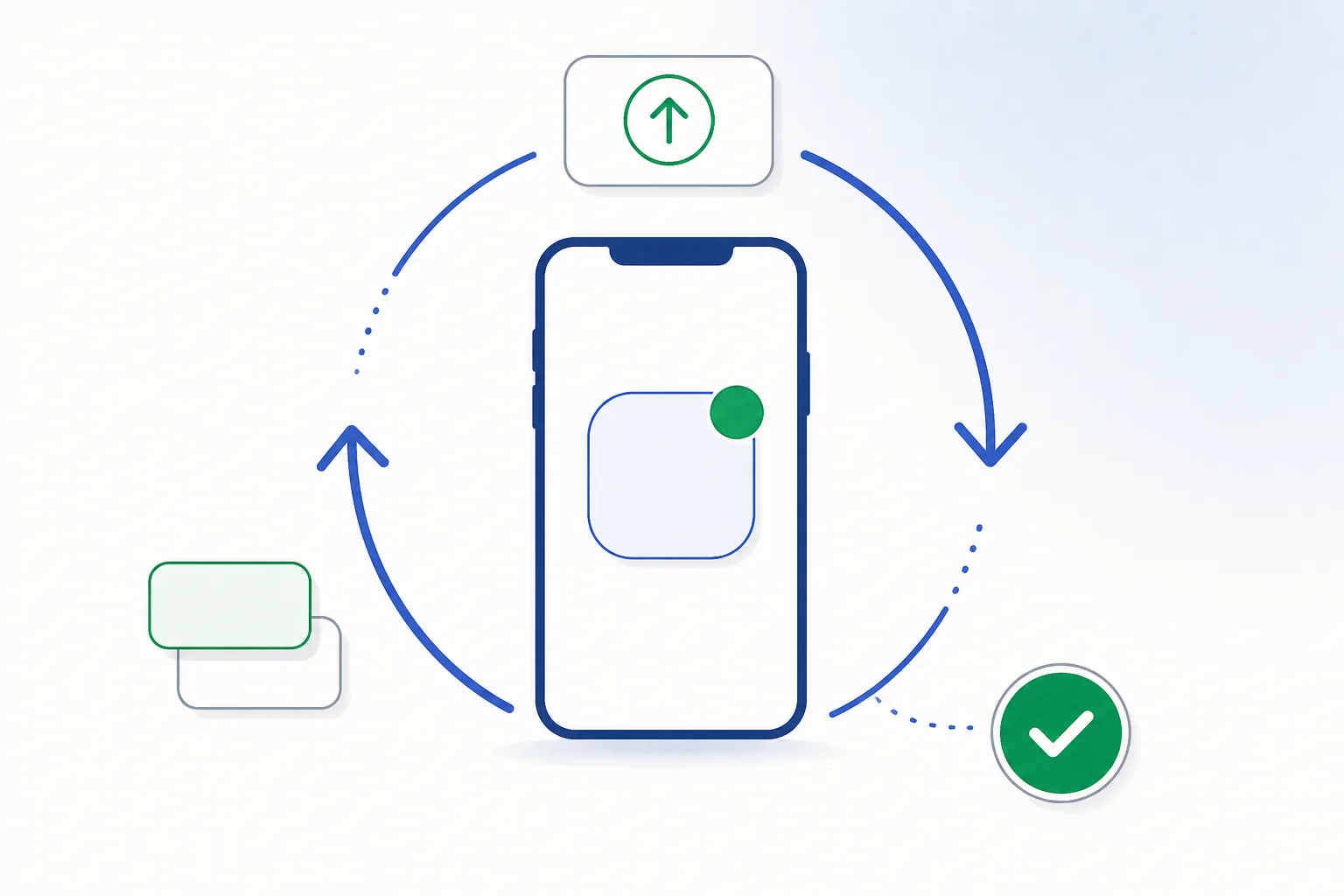
How updates reach you
| Property | Google Play update | Direct update |
|---|---|---|
| Who starts it | Automatic, or one tap in the Play Store | You, from the app's prompt or the official mobile page |
| Where the file comes from | Google's servers | The operator directly, because Play does not carry this category in India |
| Publisher check | Handled by the store | Handled by Android at install: same signature or no update |
| Going back a version | Not offered to users | Not offered either — Android only accepts newer builds |
| Keeping current | Happens in the background | Occasional and deliberate; the app usually tells you when |
Many directly distributed apps also update themselves: the app notices a newer build, fetches it and asks you to confirm. That is the smoothest path, and it is the same mechanism plenty of well-known Android apps use outside the store. If you would rather understand what is inside a package before you tap confirm, the background is in APK security fundamentals.
Version codes and names
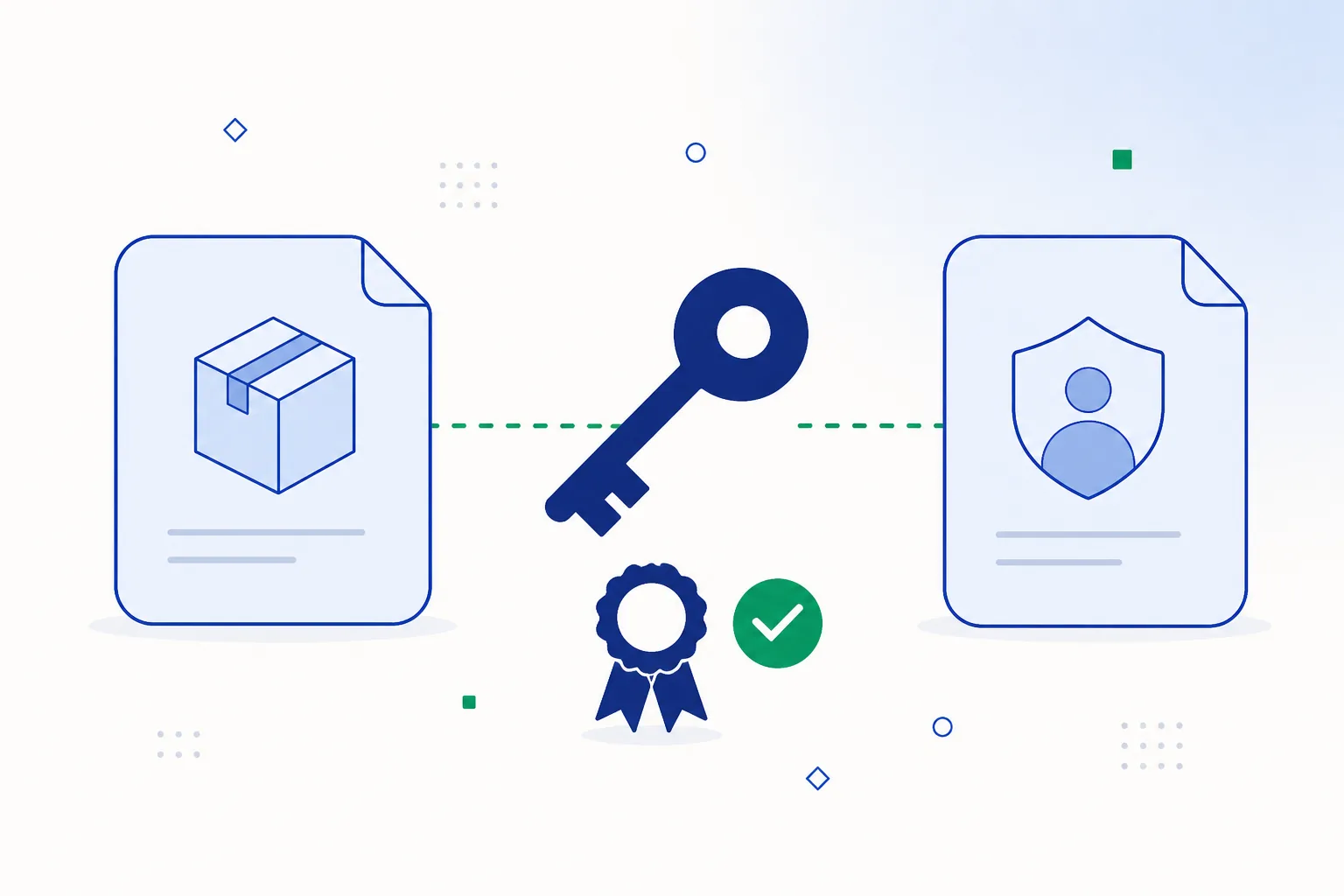
versionNameis the readable label (“2.4.1”) shown in the app’s About screen. It is for humans, and publishers choose it freely.versionCodeis the whole number Android actually compares. A package whose versionCode is not higher than the one installed is treated as a downgrade and declined, which is how Android keeps an old build from replacing a newer one.
You can read both before installing with an APK analyser (step 3 of the quick checks) and afterwards under Settings → Apps → [app]. That is also the reliable way to answer “am I on the latest version?” — your phone knows, and download pages often do not.
Installing a new build
- Note what you have
Settings → Apps → [app] shows the installed version. Handy for confirming afterwards that the update actually landed, and it takes five seconds.
- Get the package from the official mobile page
Use the button on this page rather than a search result, so the file you install is the operator’s current build. If the app prompted you itself, its own download link is equally fine.
- Install over the top — do not uninstall first
Open the downloaded package and let Android update the existing app. Everything stays: your session, your preferences, your history. Uninstalling first would clear the app’s local data for no benefit.
- Open it once and check permissions
A new build occasionally asks for something extra — camera for an identity check, notifications for alerts. Each prompt is yours to accept or decline, and you can review the whole list any time under Settings → Apps → [app] → Permissions. The reference is in permissions explained.
What happens to your data
- Update over the top: logins, settings and local history all persist. This is the normal path and the one to use.
- Uninstall then reinstall: the app’s local data is cleared. Your account itself lives on the server, so your balance and history come back when you sign in — but you will need to log in again and set your preferences.
- Clear storage without uninstalling: resets the app to a fresh state, which occasionally fixes a stuck screen. Details in app troubleshooting.
Update messages explained
| What you see | What it means | What to do |
|---|---|---|
| “App not installed” when opening an update | Different signer, or the package is older than the installed build | Fetch the current package from the official mobile page and install that |
| The app asks for an update but offers no file | The server expects a newer build than the one you have | Open the official mobile page and install the current package from there |
| It updates, then asks again | The package you installed is older than the version the service now expects — typical of a stale mirror | Compare the versionCode of the file with the installed one, then take the build from the official page |
| New permission prompt after updating | The new build added a feature that needs it, such as document capture | Accept what fits the feature you use, decline the rest, and adjust later in Settings |
Simplest way to be on the current build:Open the official mobile page
Frequently asked questions
How do I know when an update is available?
Usually the app tells you when you open it, because the service knows which build you are running. If you want to check yourself, compare the version in Settings → Apps with the one on the official mobile page — a ten-second job worth doing every few weeks.
Can Google Play update an app I installed myself?
Only when the identical app is also published on Play, which is not the case for this category in India. Updates therefore come from the app itself or from the official mobile page, and both routes install over the top in the normal way.
Is it fine to stay on an older version?
It works until it doesn’t. Older builds gradually fall behind new Android behaviour and can start crashing after a system update — the pattern described in crashes after Android updates. Since updating takes a minute and keeps your data, staying current is the easier option.
Related guides
Sources & references
- Android Developers — version your app (versionCode/versionName) — accessed August 2026
- Android Developers — app signing — accessed August 2026
- Google Play Help — update apps on Android — accessed August 2026